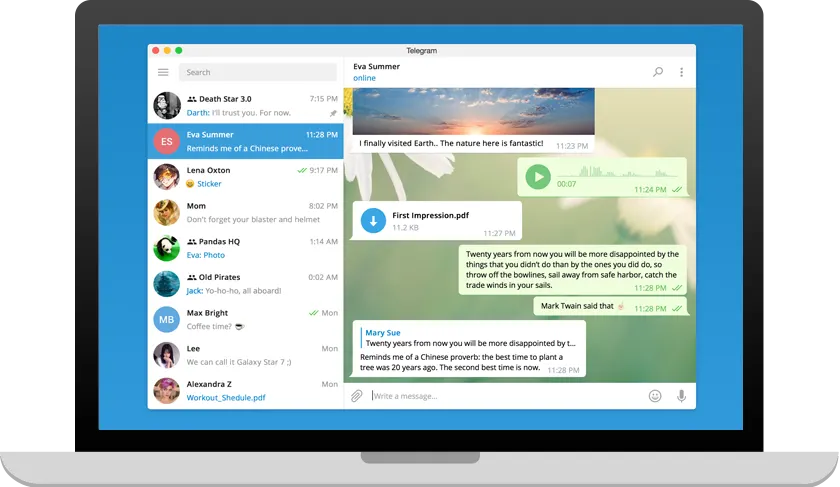
Your own Windows or Mac computer
Install the desktop build (6.2.3 on Windows). You get folders, drag-and-drop uploads, native notifications and offline drafts. Sign in once and leave it running.
Windows download notesClient comparison
You do not have to choose only one. Most people keep the desktop app on a work machine, the mobile app in a pocket, and open the browser client only when they cannot install software. The table below shows what each surface can and cannot do.

Feature matrix
| Capability | Desktop | Web | Mobile |
|---|---|---|---|
| Install required | Yes (.exe / .dmg) | No — browser only | Yes (APK / App Store) |
| Cloud chat history | Full sync | Full sync | Full sync |
| Secret chats | Not available | Not available | End-to-end on device |
| Voice & video calls | Supported | Limited / browser dependent | Best experience |
| File transfers up to 2 GB | Drag and drop | Upload from disk | Camera roll & files |
| Chat folders | Full | Full | Full |
| Multi-account | Yes | Separate browser profiles | Yes |
| Best for | Daily work laptop / PC | Borrowed or locked machines | On the go, camera, calls |
Multi-device sync means the same account can stay signed in on all three. End unused sessions from Settings → Devices whenever a machine leaves your control.
Decision guide
Install the desktop build (6.2.3 on Windows). You get folders, drag-and-drop uploads, native notifications and offline drafts. Sign in once and leave it running.
Windows download notes
Use Telegram Web, sign in with a QR code from your phone, and log out when you leave. Nothing stays on the disk after the session ends.
How web login works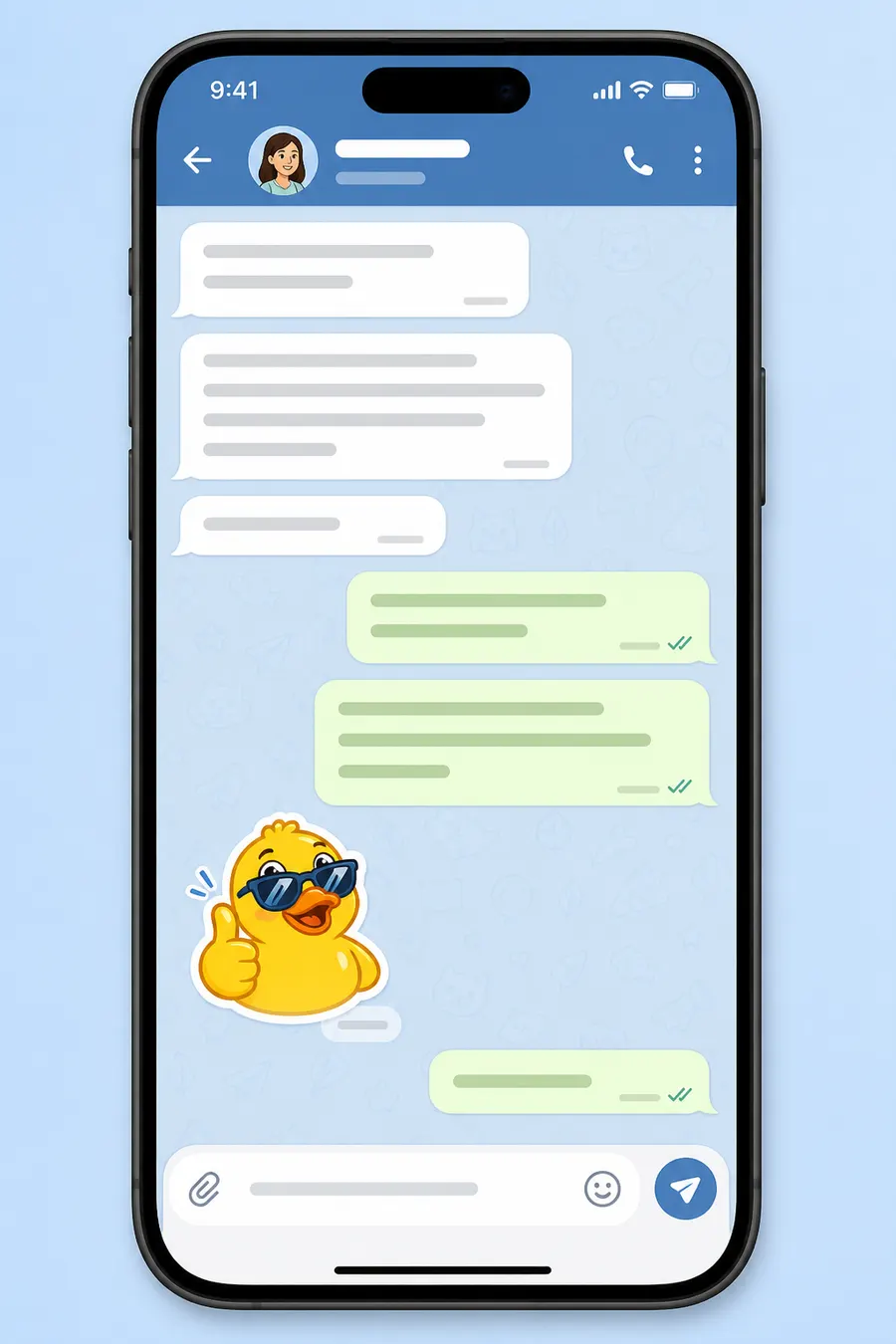
Install Android or iPhone. Secret chats, camera uploads and reliable push notifications only live here. Keep the desktop client for typing-heavy days.
Android package notesStill unsure?
If you are reading this on a laptop, grab the Windows or macOS installer first. Pair the phone when you need camera uploads or secret chats. The browser client remains a spare key for travel days and locked-down office machines.