
A computer you do not own
Library machines, hotel business centres and a colleague's laptop all block installers. A browser tab leaves nothing behind once the session ends.
Browser client
The web client covers the case the installers cannot: a computer that is not yours. You sign in by scanning a code with the phone already in your pocket, read and send what you need, and log out leaving nothing on the machine.
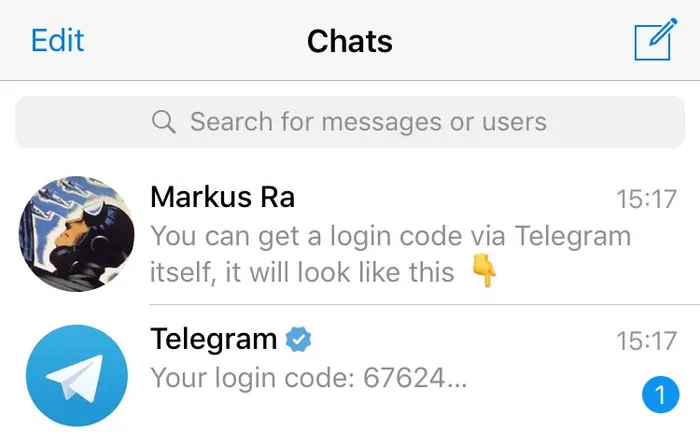
Right tool, right moment
Library machines, hotel business centres and a colleague's laptop all block installers. A browser tab leaves nothing behind once the session ends.
Where group policy forbids new software, the web client is usually still reachable and needs no administrator involvement at all.
If no native package suits the system, the browser version delivers the same cloud chats without hunting for a compatible build.
Reading one message or pulling one file out of a chat is not worth a 48 MB download and an install dialog.
Signing in
Open the web client — the link sits on the download page next to the installers.
Choose Log in by QR code. A square code appears in the browser window.
On your phone open Settings, then Devices, then Link Desktop Device.
Point the camera at the code. The browser session authorises in a second or two, without your phone number ever being typed into that computer.
Your cloud chats load in order, with media downloadable on demand.
When you are done, open the menu and log out — do not just close the tab, because the session stays authorised otherwise.
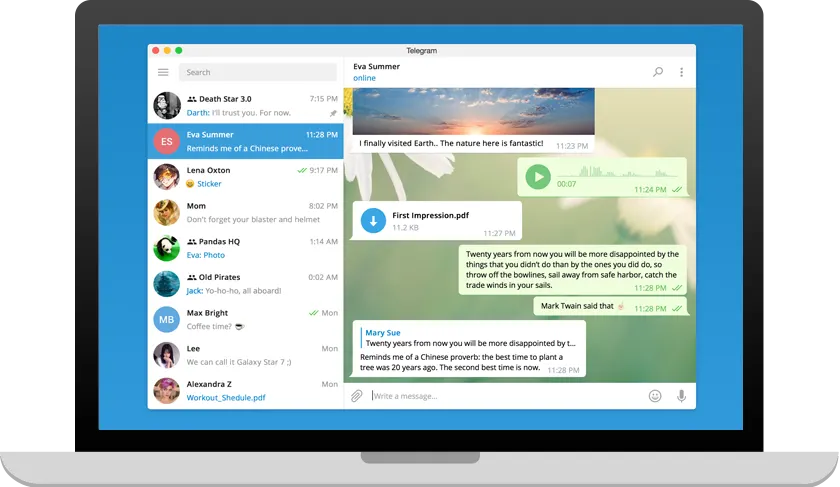
Honest comparison
| Capability | Web client | Desktop app |
|---|---|---|
| Cloud chats and full history | Yes | Yes |
| Send and receive files up to 2 GB | Yes | Yes |
| Groups, channels and topics | Yes | Yes |
| Chat folders | Yes | Yes |
| Notifications with the tab closed | No | Yes |
| Secret chats | No | No — mobile only |
| Drag and drop from the desktop | Limited | Yes |
| Offline drafts | No | Yes |
If you use Telegram every day on your own machine, install the desktop client — notifications and offline drafts alone justify it. Details are on the Windows and macOS pages.
Shared computers
Closing the tab leaves the session active in your account. Use the log out command inside the client, then confirm in Devices from your phone that it is gone.
Settings → Devices lists every authorised client. Ending a session there kills it immediately, even if you are nowhere near that computer.
Anything you download lands in that machine's Downloads folder. Open media in the browser instead, or clear the folder before you leave.
A login password on top of the code makes an intercepted SMS far less useful to anyone else.
The security checklist covers session management and two-step verification in more detail.